
neuromore Studio
OSC Tutorial
Introduction
Section titled “Introduction”neuromore Studio can receive and send Open Sound Control (OSC) messages. Use OSC to feed data from your own sources into a classifier, and to send classifier values to external software.
OSC runs over UDP, which is one-way. Delivery is not guaranteed, so messages can be lost and the sender gets no reply. Keep this in mind before you connect anything that depends on every message arriving.
These are the default ports:
| Port | Protocol | Used for | Change it in |
|---|---|---|---|
| 4545 | UDP | Incoming OSC, read by OSC Input nodes | NMStudio > Settings > Network > OSC Server > Input UDP port |
| 4546 | UDP | Outgoing OSC from OSC Output nodes | NMStudio > Settings > Network > OSC Server > Target UDP port |
| 45554 | UDP | Feedback bundle to clients, including Send OSC Msgs values | Fixed |
Feeding custom data to neuromore Studio
Section titled “Feeding custom data to neuromore Studio”We cannot support every imaginable data source. That is why you can send custom values from your own sources, such as biosensors, accelerometers, joysticks or other software, as Open Sound Control messages over UDP. OSC libraries are available for many programming languages.
What to send
Section titled “What to send”- Send to UDP port 4545 on the computer that runs Studio.
- Send one 32-bit float per message, with an OSC address that you choose, such as
/my/custom/osc/address. - Use the float type explicitly. Any other argument type, such as an OSC integer or double, reads as 0, with no error. Some libraries send whole numbers as integers, so check what yours sends.
- Bundles are also accepted, and each message in a bundle is handled by its own address. If a message has several arguments, each argument becomes one more sample. Keep each UDP packet to 1024 bytes or less, because larger packets are not supported.
Check your messages with an OSC monitor
Section titled “Check your messages with an OSC monitor”An OSC monitor shows what your source is sending. Any monitor that can listen on a UDP port works.
One option is OSC Data Monitor from the osc-tools archive. This is an old third-party tool. Its Windows download dates from 2011 and needs Java, and we have not checked whether it runs on current systems.
In OSC Data Monitor, add port 4545 and make sure it appears under “Now listening to OSC ports”. If your source is sending correctly, you see lines like this:
[4545] /my/custom/osc/address 0.264 (float)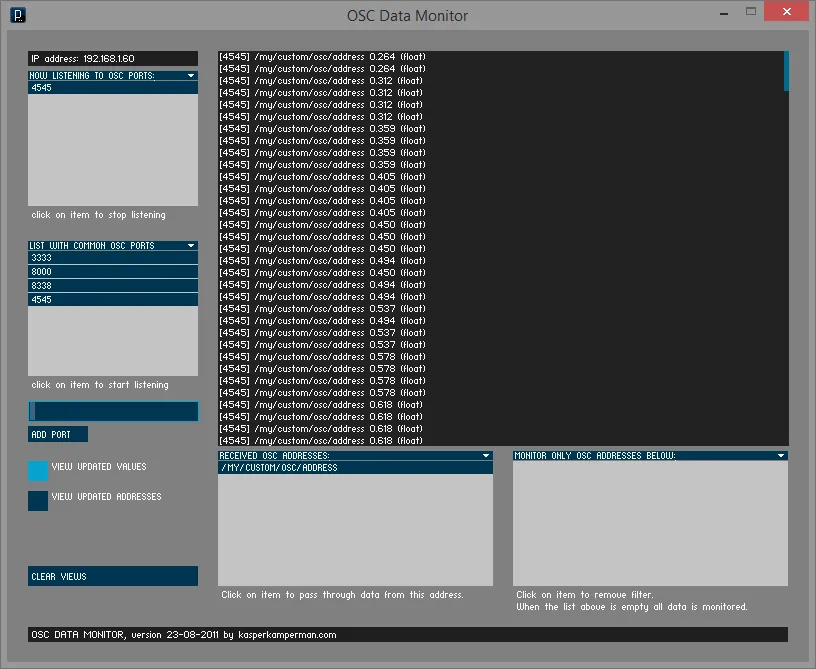
Close the monitor, or stop it listening on 4545, when you finish this check. If both programs listen on the same port on one computer, the operating system decides which one gets each message, so you may see data in only one of them.
Add an OSC Input node
Section titled “Add an OSC Input node”- In the Back-End File System window, create a classifier or find an existing one, then double-click it. It opens in the Classifier window. See Create a classifier.
- Drag an OSC Input node into the classifier from the Input category.
- Connect its output to another node. An OSC Input node with nothing connected to its output does not run.
- Select the node to see its attributes.
- In OSC address, enter the address your source sends to. It must match exactly. The default is
/in/0, then/in/1and so on for further nodes. - In Sample rate, enter the rate at which your source really sends. The default is 128.
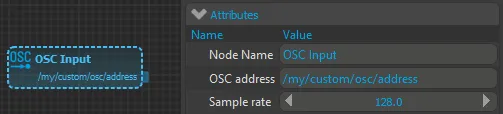
Each OSC Input node in a classifier needs its own address. If two nodes share one, the node shows the error “OSC address is not unique” and does not run.
Send at a steady rate
Section titled “Send at a steady rate”Studio does not resample incoming OSC values to a constant rate. Each value it receives becomes one sample, and the node treats those samples as if they arrived at the rate set in Sample rate.
So send at a steady rate, and set Sample rate to that actual rate. Sample rate describes your incoming data, not the rest of your classifier. If the timing is irregular, or the setting does not match what you send, nodes further along the classifier work on a wrong time base.
Send from another computer
Section titled “Send from another computer”Send to the IP address of the computer that runs Studio, on port 4545. Allow that UDP port through the computer’s firewall, and do this only on a network you trust.
Reading data from classifiers
Section titled “Reading data from classifiers”You can also send values from your classifier to anything else that can read OSC messages. You could use this to drive your own visualizations, generate sounds or set the color of Wi-Fi connected lights.
Studio has two ways to do this: OSC Output nodes, and the feedback bundle.
OSC Output nodes
Section titled “OSC Output nodes”- Drag an OSC Output node into your classifier from the Output category.
- Connect a value to its input. The node sends only when its input is valid.
- Select the node and set its attributes.
| Attribute | What it does |
|---|---|
| OSC Address | The address to send to. The default is /out/0, then /out/1 and so on for further nodes. Each OSC Output node in a classifier needs its own address. |
| Resolution | How often messages are sent: Original (the sample rate of the connected input), High (30 messages per second, the default), Mid (10) or Low (4). |
| Output Name | The name of the node’s output channel: Use Node Name (the default), Use Channel Name or Use Custom Name. Use Custom Name shows a Custom Name attribute. This setting does not change the OSC address. |
In 1.7.3: Output Name offers only Use Node Name and Use Channel Name, and there is no Custom Name attribute.
Each message holds the address and one float. By default, messages go to 127.0.0.1 on UDP port 4546. To check them, point your OSC monitor at port 4546.
Feedback bundle
Section titled “Feedback bundle”The feedback bundle is a separate path, used by Studio’s visualizations and by your own clients.
Send OSC Msgs puts a node’s value in the feedback bundle on port 45554, not on 4546. Each message has four arguments: value (float), is ranged (bool), range min (float), range max (float). OSC Output nodes use port 4546.
To add a value to the bundle:
- Drag a Custom Feedback node into your classifier from the Output category and connect a value to it.
- Turn on Send OSC Msgs. It is off by default.
- In OSC Address, enter the address to use. The default is
/feedback/0, then/feedback/1and so on for further nodes.
Studio sends the bundle about 60 times per second. Resolution does not change this rate. The bundle goes to each client connected to the Studio Server on TCP port 45456, and to the local computer. To read it, listen on UDP port 45554. The Target Host/IP and Target UDP port settings do not apply to it. If a visualization runs on the same computer, the note about sharing a port above applies here too.
Besides the values from your nodes, the bundle holds these messages:
| Address | Argument | Sent |
|---|---|---|
/session/points |
Points (float) | When the session has points |
/session/time |
Elapsed seconds (float), 0 when no session is running | Always |
/session/running |
Whether a session is running (bool) | Always |
Dedicated control nodes such as Speed Control and Rain Control send on fixed addresses. See Visualizations.
Volume Control and Brightness Control
Section titled “Volume Control and Brightness Control”Volume Control works in Studio’s Experience window and over WebSocket to the Chrome extension. In Visualization mode, it sends /audio/volume to visualizations in the feedback bundle on port 45554.
Note: Not every build sends
/audio/volumeyet. 1.7.3 and the current 1.8.2 source don’t. In those builds, use a Custom Feedback node with the OSC address/audio/volumeand Send OSC Msgs on.
Brightness Control works in Studio’s Experience window and over WebSocket to the Chrome extension. It sends no OSC, deliberately, and games have no brightness address.
Both nodes expect a value from 0 to 1 and sit in the Output category. See Browser neurofeedback for the WebSocket path.
OSC settings in neuromore Studio
Section titled “OSC settings in neuromore Studio”Open NMStudio > Settings, select the Network category, and find the OSC Server group.
| Setting | Default | What it does |
|---|---|---|
| Input UDP port | 4545 | The port where Studio listens for incoming OSC. Studio rejects 45456 and 45555 with a warning, because the Studio Server uses them. |
| Target Host/IP | 127.0.0.1 | Where OSC Output nodes send their messages. If your receiver runs on another computer, enter its IP address. |
| Target UDP port | 4546 | The port OSC Output nodes send to. |
Target Host/IP and Target UDP port apply only to OSC Output nodes. They do not redirect the feedback bundle.
The group also lists Local Endpoint. Studio does not use this value, so you can leave it as it is.
Studio saves and applies these changes immediately.