
Integrations
Browser neurofeedback
WebSocket server and feedback nodes Supported; Chrome extension Beta. This page describes Studio 1.8.2 and the generic path that works with any device that reaches the classifier. The WebSocket transport is the same in 1.7.3, the latest public download. Named web platforms are examples only.
Browser neurofeedback means that a signal from the body changes what happens in a web page. EEG is the usual source, but any signal that reaches neuromore Studio works the same way: a simulated signal, any number sent over OSC, or heart rate from a Bluetooth LE monitor once that driver is enabled. The classifier, the signal-processing graph in Studio, turns that signal into a feedback value between 0 and 1. The neuromore Chrome extension receives the value over a local WebSocket connection and applies it to the connected browser tab, as the volume of the media playing there or as the brightness of the page.
Safety: Feedback can change screen brightness and volume quickly. Avoid this setup if you are sensitive to flashing or flickering light. Keep volume moderate. Stop if you feel uncomfortable. To stop feedback, end the session with the stop button in the Session Control window (tooltip “End the Session”), or click Disconnect in the Chrome extension popup.
Studio sends up to 10 values per second, and the extension applies each one straight away, without smoothing. So a noisy signal can change the page that fast, and a value of 1 sets media to full volume at once. Before you connect a signal to the feedback nodes, slow it down, for example with a Smoothing node, and start with low media volume. When the session ends or you click Disconnect, the extension puts back the brightness and volume the page had before. If a page stays dark, reload it.
The browser side never sees the device. Studio sends values from the classifier’s feedback nodes, and the extension acts only on values from nodes named “Volume Control” or “Brightness Control”. So the same extension and test steps apply to every device on the Devices page. The BrainBit pages further down this chapter are a worked R&D example of this path, see BrainBit browser neurofeedback (R&D).
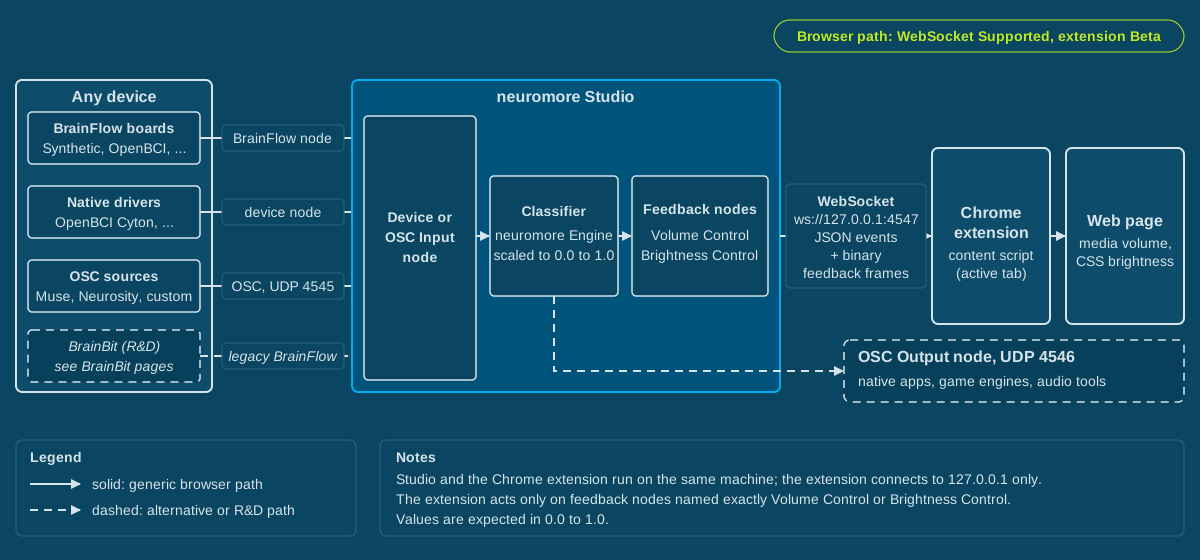
A device enters Studio through an input path, the classifier produces a value between 0 and 1, and the WebSocket server carries it to the browser tab. OSC over UDP is the alternative for native applications.
Components
Section titled “Components”Any device, through one of four input paths
Section titled “Any device, through one of four input paths”A device reaches the classifier through a native driver, the BrainFlow node, OSC input or the Bluetooth LE and generic sensor path. The Integrations overview explains the four paths and holds the device matrix; Devices and BrainFlow boards give per-device details. An EEG device node has an “EEG” output port carrying all its channels; an OSC source arrives through OSC Input nodes, one per address.
The Bluetooth LE path needs setup. The driver is off by default, so turn it on under NMStudio > Settings > Devices > “Enable Bluetooth Devices”. Whether it is available depends on your account. The generic accelerometer and gyroscope devices have no Studio driver. They need a host application that embeds the Engine, see Engine library and source builds.
neuromore Studio and neuromore Engine
Section titled “neuromore Studio and neuromore Engine”neuromore Studio is the desktop application used for configuration and R&D. It contains the native device drivers, apart from the simulated Test Device. neuromore Engine, its C++ processing core, executes the classifier and output nodes and ticks the registered drivers. A typical browser classifier selects one or more channels, computes a band power or another measure, and maps the result to the range 0 to 1, for example with FFT, Frequency Band and Remap. Status: Supported. The WebSocket server needs Studio 1.7.0 or newer, according to the extension README.
In 1.7.3: The FFT node defaults to order 7, ignores its window setting and scales amplitudes differently. A Remap input range tuned on one version can saturate or sit flat on the other, with no error if Clamp Output is on, so retune it when you change version. See What changed since 1.7.3.
Volume Control and Brightness Control nodes
Section titled “Volume Control and Brightness Control nodes”Both nodes sit in the Output category of the palette and expect a value from 0 to 1. Any account can create them. An input outside that range shows the error “Value not in range” on the node, but Studio does not clamp the value and still sends it. The extension limits each value to the range 0 to 1 and ignores anything that is not a finite number, so an out-of-range signal sits at silent or full volume, or at black or normal brightness. Keep values in range in the classifier, for example with Remap and Clamp Output switched on. Volume Control has a Mode attribute whose default, “Studio Volume”, also sets Studio’s own playback volume; the value sent to the browser is the same in every mode.
Other feedback nodes, such as Custom Feedback, are sent too, but the extension ignores any name other than exactly these two. The node’s own name must match exactly, whichever Output Name option is selected. Choosing “Use Custom Name” does not change what the extension matches. Status: Supported.
In 1.7.3: Output Name has only two options, “Use Node Name” and “Use Channel Name”. The node’s own name must still match exactly.
WebSocket server
Section titled “WebSocket server”Studio starts a plain WebSocket server (ws://) on TCP port 4547 when it launches. It sends JSON text messages for events such as classifier loaded, session started, feedback layout and session stopped, and binary frames carrying the current feedback values every 100 ms while a session is running, whatever the node’s Resolution setting. Every message is broadcast to all connected clients, so every connected tab receives the same frames. Status: Supported. Message details are in the Chrome extension guide.
You can change the port under NMStudio > Settings > Network > Websocket Server > Listen TCP Port; a new port takes effect after a Studio restart. The extension always connects to port 4547, so keep the default for browser use.
Caution: The WebSocket interface is an unauthenticated local protocol. Keep its port (4547 by default) firewalled and don’t expose it to untrusted networks.
neuromore Chrome extension
Section titled “neuromore Chrome extension”The extension is a Manifest V3 extension, installed with “Load unpacked” in Chrome’s developer mode. The extension is not in the Chrome Web Store. Clicking Connect in its popup injects a script into the active tab only, which opens a WebSocket to the hard-coded address ws://127.0.0.1:4547. A value from “Volume Control” is written to the volume of every audio and video element on the page; a value from “Brightness Control” is applied as a CSS brightness filter on the page body, or on the video container on YouTube pages. The connection belongs to that tab and is lost, without reconnect, when the tab navigates or reloads. The extension restores the page’s earlier brightness and volume when the session stops, when you click Disconnect and when the connection closes. Studio state machines can also open a URL and start or pause a video through the extension, see the Chrome extension guide. Status: Beta.
OSC output as the native-app alternative
Section titled “OSC output as the native-app alternative”For clients that are not browsers, Studio also speaks Open Sound Control over UDP, alongside the browser path and from the same classifier. OSC Output nodes send one float per message to 127.0.0.1 port 4546 by default. OSC Input nodes listen on port 4545. These ports and the target host are set under NMStudio > Settings > Network > OSC Server. Status: Supported. See OSC Tutorial.
Send OSC Msgs puts a node’s value in the feedback bundle on port 45554, not on 4546. Each message has four arguments: value (float), is ranged (bool), range min (float), range max (float). OSC Output nodes use port 4546.
The two browser nodes behave differently from other feedback nodes here:
Volume Control works in Studio’s Experience window and over WebSocket to the Chrome extension. In Visualization mode, it sends
/audio/volumeto visualizations in the feedback bundle on port 45554.
Note: Not every build sends
/audio/volumeyet. 1.7.3 and the current 1.8.2 source don’t. In those builds, use a Custom Feedback node with the OSC address/audio/volumeand Send OSC Msgs on.
Brightness Control works in Studio’s Experience window and over WebSocket to the Chrome extension. It sends no OSC, deliberately, and games have no brightness address.
Data flow
Section titled “Data flow”- A device produces samples: EEG, heart rate, a BrainFlow board, an OSC sender or a simulated signal.
- The samples reach the classifier through one of the four input paths and appear as output ports.
- neuromore Engine, inside Studio, runs the classifier: channel selection, filtering, band power or other processing, then a mapping to a value between 0 and 1.
- The value reaches a node named “Volume Control” or “Brightness Control”. Studio flags values outside 0 to 1 but does not clamp them.
- When the session starts, the WebSocket server sends a JSON layout message listing each feedback node’s name, sample rate and channels. Body Feedback nodes are not included. The list is ordered by the nodes’ vertical position in the graph, and that order is the node index used in binary frames.
- While the session runs, the server sends one binary frame per feedback node every 100 ms: the frame type, the node index, then one 64-bit value per input channel, each holding the node’s current value. A node with no input connected gets no frame.
- The extension script in the connected tab looks up the node name by index, limits the value to 0 to 1 and applies it: media element volume for “Volume Control”, CSS brightness filter for “Brightness Control”.
- The page’s media reflects the change. Plain
<video>and<audio>elements are the case the code is written for.
Pausing a session does not stop browser feedback. Studio keeps sending frames during a pause, and the page keeps its changed brightness and volume. Thresholds, integrals and statistics hold during a pause, but what the value does depends on your graph, so it can keep moving. To stop feedback, end the session.
In 1.7.3: Frames also keep flowing during a pause, and thresholds, integrals and statistics do not hold.
Interfaces
Section titled “Interfaces”| Name | Protocol | Default port | Direction | Who uses it |
|---|---|---|---|---|
| WebSocket server | WebSocket over TCP (ws://) | 4547 | Studio to client (events, feedback values, and state machine commands: open URL, start, pause and stop player); client to Studio (page URL, player events). The extension does not implement stop player, see the Chrome extension guide | neuromore Chrome extension; custom local WebSocket clients |
| OSC input | OSC over UDP | 4545 (listen) | Into Studio (OSC Input nodes and OSC-fed devices) | Any OSC source, Muse through muse-io, Neurosity headsets |
| OSC output | OSC over UDP | 4546 (target, host 127.0.0.1) | Out of Studio (OSC Output nodes only) | Native apps, game engines, audio tools |
| Feedback bundle | OSC over UDP | 45554 (client port, fixed) | Out of Studio, to connected clients and localhost (feedback nodes with Send OSC Msgs on) | Visualizations and other clients |
Transport note
Section titled “Transport note”Browsers give web pages and extension content scripts no general way to send UDP, so OSC over UDP is not an option inside the browser. The browser path therefore uses WebSocket, which runs over TCP. Native applications keep using OSC, and Studio can serve both at the same time.
A site’s security settings or Chrome’s local network access permission can still block the connection to Studio. The popup’s error message mentions this.
Which device to start with
Section titled “Which device to start with”| Device | Path | Hardware needed | Status | Notes |
|---|---|---|---|---|
| BrainFlow Synthetic board | BrainFlow node, Sensors category | None | Supported | 16 channels at 250 Hz, available to every account; click Apply to create the device. Recommended first step. |
| OpenBCI Cyton | Native driver, or BrainFlow node | Cyton board and USB dongle | Supported | 8 channels at 250 Hz; native node availability depends on the account. |
| InteraXon Muse | OSC-fed device through muse-io | Muse headband, muse-io | Beta | 4 channels at 220 Hz. Studio reads muse-io’s OSC addresses and cannot tell Muse models apart. Needs muse-io; node availability depends on the account. |
| Neurosity Notion 1 and 2 | OSC-fed device; the headset sends OSC to Studio’s OSC input port | Notion headset | Supported | 8 channels at 250 Hz. The headset’s network setup is outside Studio. Set Input UDP port to the port it sends to, see Biosensors. Crown is Beta; node availability depends on the account. |
| Any OSC source | OSC Input nodes on UDP 4545 | Whatever produces the data | Supported | One float per message; set each node’s Sample rate. |
| BrainBit | BrainFlow node (Legacy), Windows | BrainBit headband | R&D | Studio has no native BrainBit driver yet (Planned). The legacy board is the route today, see BrainFlow boards and the BrainBit pages. |
A Signal Generator node in the Input category needs no device at all and is useful for checking the browser side alone. Its defaults give values from -1 to 1 at 1 Hz, which is out of range and too fast, so set Frequency to 0.1, Amplitude to 0.5 and DC-Offset to 0.5. The value then moves slowly between 0 and 1. The Browser test workflow uses it first and then the BrainFlow Synthetic board.
The Synthetic board generates a fixed sine wave on each channel, 5 Hz on the first channel, 10 Hz on the second and so on, with small random changes in amplitude. It does not generate changing alpha. By channel order, C3 is at 10 Hz, inside the Alpha band of 8 to 12 Hz, and Oz is at 35 Hz, outside it. So select C3 if you use the Alpha band. The result shows that the chain works, not that it responds to a brain.
Where to go next
Section titled “Where to go next”- Chrome extension guide: install, connect, messages and troubleshooting.
- Browser test workflow: a test you can run today without EEG hardware, then optionally with a device you own.
- Browser constraints: browsers, extension and web platform limits, update rate, ports and Studio versions.
- BrainBit project, a worked R&D example: BrainBit browser neurofeedback (R&D), BrainBit connection and setup, BrainBit test workflow and BrainBit constraints.